This website uses cookies
This website uses cookies. For further information on how we use cookies you can read our Privacy and Cookie notice
This website uses cookies. For further information on how we use cookies you can read our Privacy and Cookie notice
/product/52/0495413/1.jpg?3455)
/product/52/0495413/2.jpg?3455)
/product/52/0495413/3.jpg?3455)
/product/52/0495413/4.jpg?3455)
/product/52/0495413/5.jpg?3455)
/product/52/0495413/6.jpg?3455)
Few units left

Express delivery in main cities
Easy Return, Quick Refund.Details
KaiW-COD
92%Seller Score
31 Followers
Shipping speed: Excellent
Quality Score: Excellent
Customer Rating: Average
Four Easy Steps to Set Up a WiFi
First, ensure your WiFi s indicator light is green and your phone is connected to the WiFi hotspot SSID "wifi-XXXX". This is crucial.
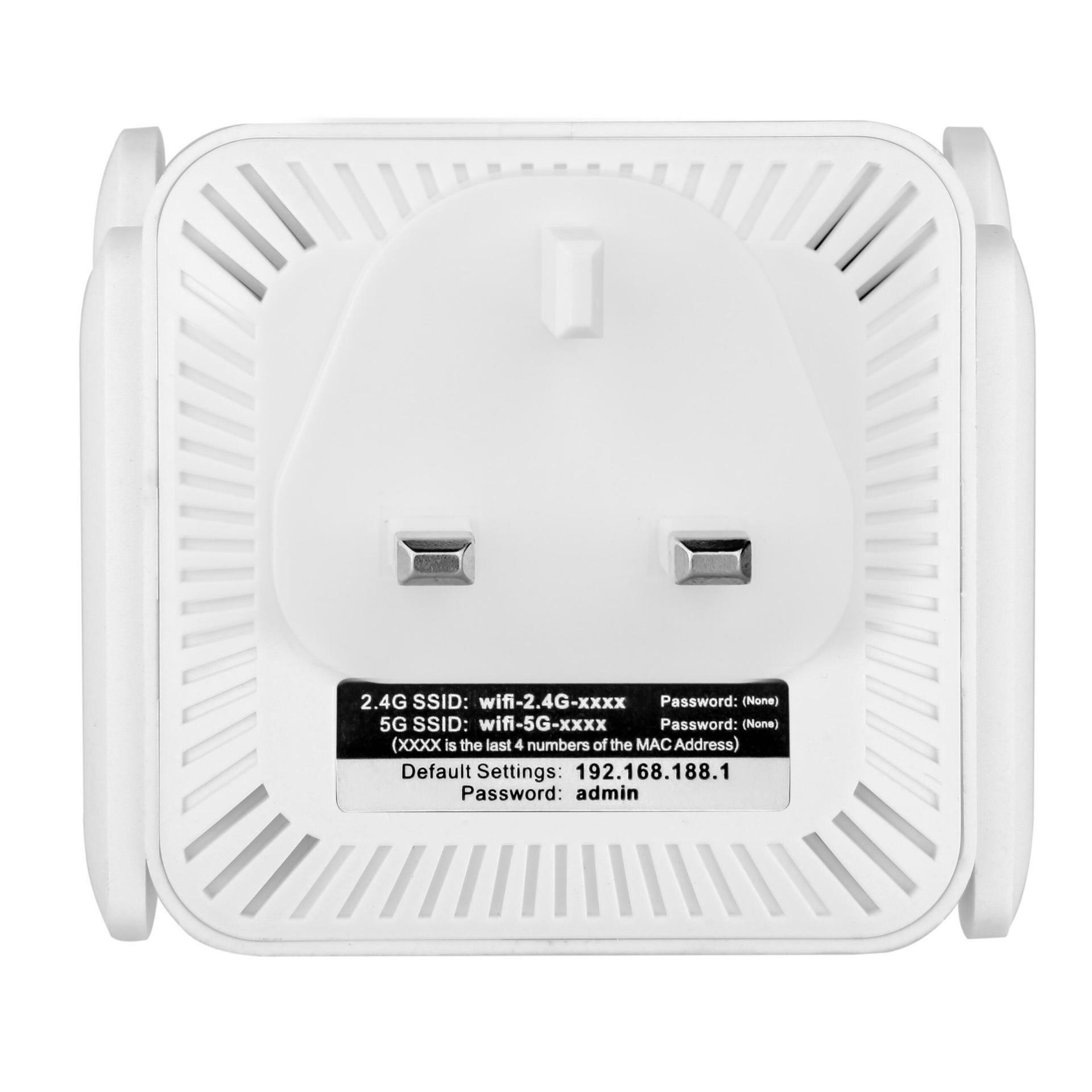
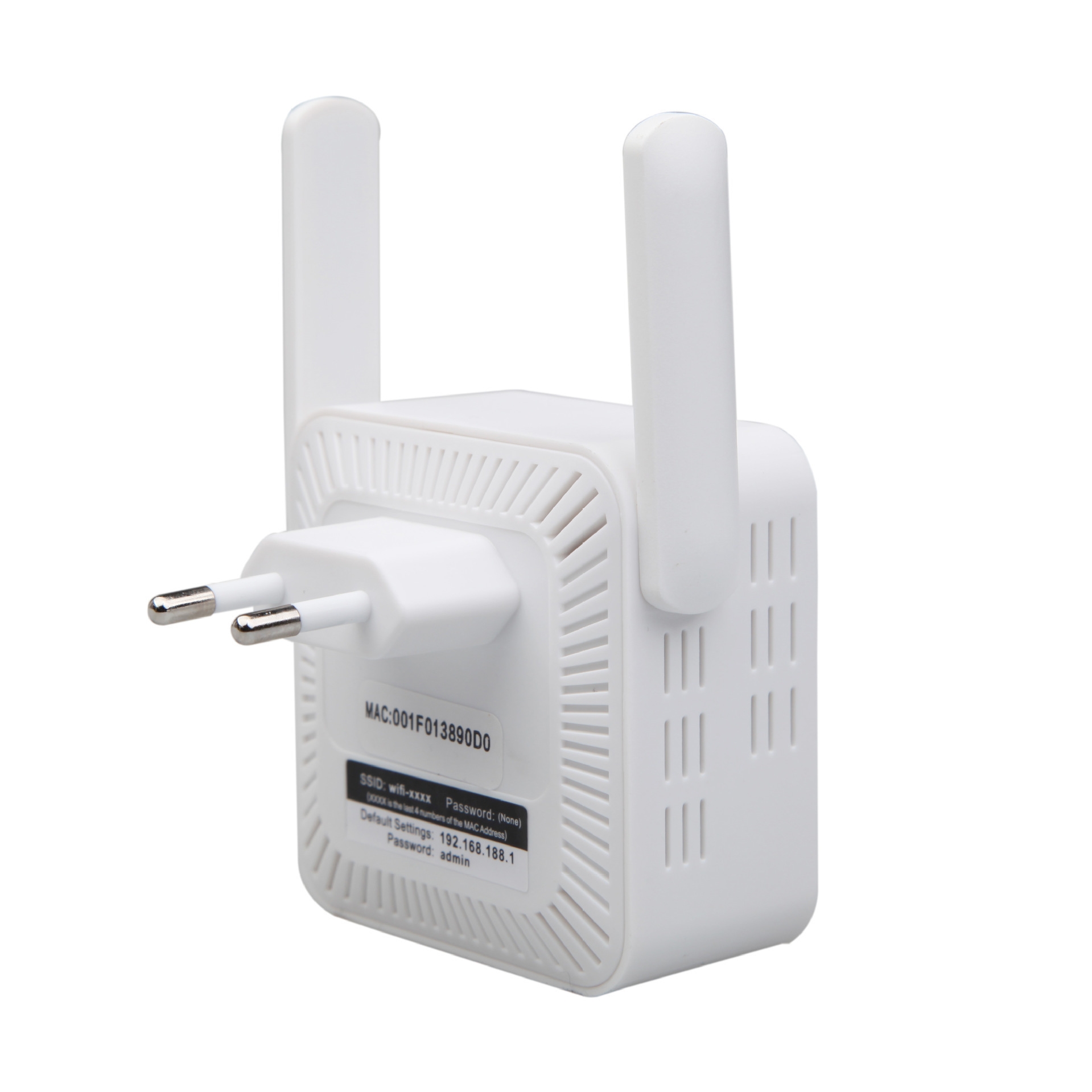
1. Plug in the power. Locate your laptop with the green WiFi indicator light and connect to the WiFi network named wifi-XXXX. Open your phone's browser and enter 192.168.188.1. The username and password are both "admin".
2. Locate your router's name and enter the password (special characters such as "" are not allowed).
3. Set the extender's SSID and password. Authentication mode: WPASK/WPA2PSK; type: TKIP/AES.
4. Initiate the connection and wait 30-60 seconds for a successful connection. The "Extender" indicator light will illuminate.
To better extend network coverage, our extender should be placed at least 500 inches (approximately 127 cm) from the router. Please note that the purpose of the network extender is… to extend network coverage, not to improve network speed.
1. Q: Should I set it up on my phone or computer?
A: You can set it up on either your phone or computer. We recommend using your phone for convenience and speed.
2. Q: I can't find the repeater's Wi-Fi name?
A: Use the password provided in the box and press and hold the repeater button. 1. Press the RESET button on the side of the repeater for 5 seconds, then turn your phone into airplane mode and then off again. Search for networks again.
2. Q: Why am I not redirected to the repeater settings page?
A: First, ensure your phone (or computer) is connected to the "wifi-XXX" WiFi network. If you are not automatically redirected to the settings page, please manually enter 192.168.188.1 to access the settings.
3. Q: Why is the repeater still not connected to the network after setting up?
A: Check if the WiFi password set on the repeater is the same as the WiFi password on the host computer. This must be consistent.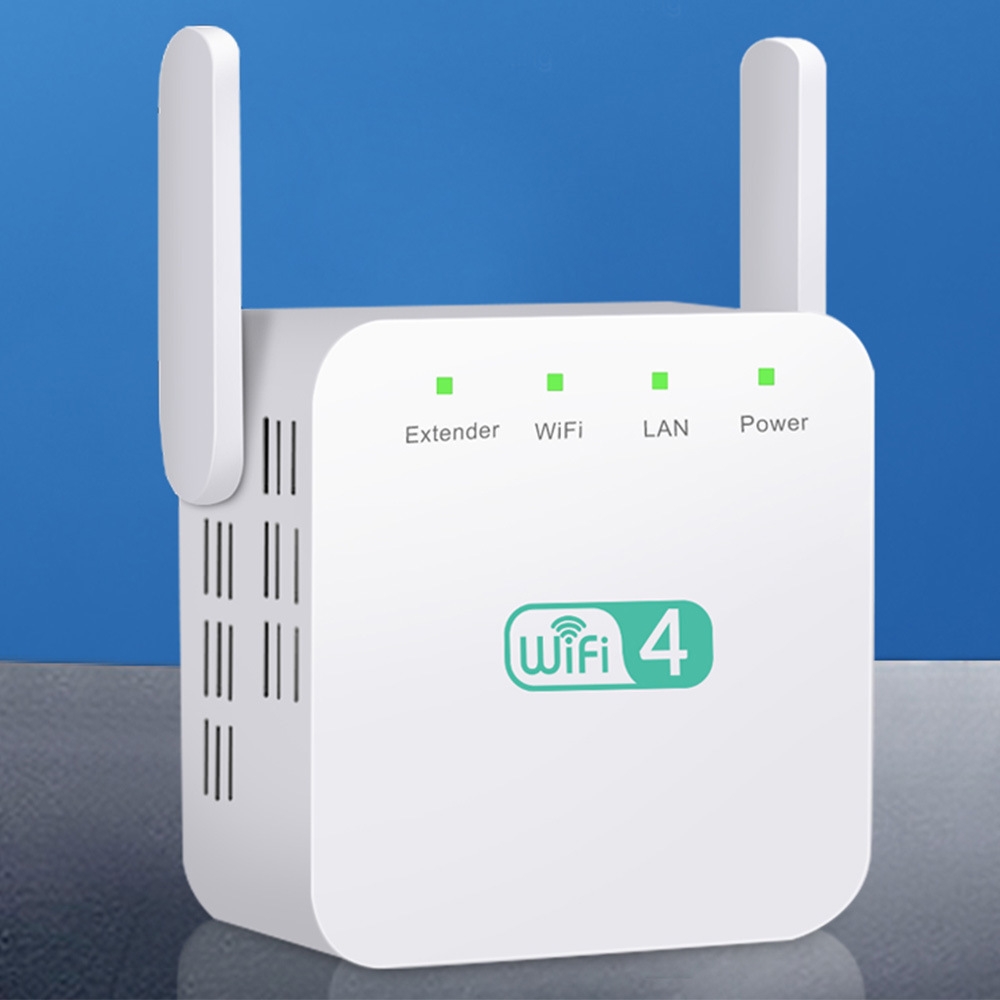



1. Q: Should I set it up on my phone or computer?
A: You can set it up on either your phone or computer. We recommend using your phone for convenience and speed.
2. Q: I can't find the repeater's Wi-Fi name?
A: Use the password provided in the packaging. Press and hold the RESET button on the side of the repeater for 5 seconds, then turn your phone into airplane mode and then off. Search for networks again.
3. Q: Why am I not redirected to the repeater's settings page?
A: First, please ensure your phone (or computer) is connected to the "wifi-XXX" Wi-Fi network. If you are not automatically redirected to the settings page, please manually enter 192.168.188.1 to access the settings.
4. Q: Why is the repeater still not connected to the network after setting it up?
A: Check if the Wi-Fi password set on the repeater is the same as the Wi-Fi password on the upstream router. They must match.

This product has no ratings yet.
/product/52/0495413/1.jpg?3455)